What it does
The CodeObsess GitHub App lets CodeObsess copy your chosen repositories for a run, push its branch and open pull requests. Its bot iscodeobsess[bot]. Pull requests are assigned to the person who asked, when their GitHub account is linked.
Connect GitHub
An owner or admin of your company does this.- On Home, press Connect GitHub. One GitHub screen signs you in with GitHub and installs the CodeObsess app.
- On GitHub, choose the account or organisation and the repositories CodeObsess may see.
- Back on Home, wait while CodeObsess reads your repositories from GitHub.
- Do the Choose repositories step: pick each repository’s access (Write or Read-only) and the Main repository.
Only an owner of your GitHub organisation can install the app there. If that isn’t you, press Ask your GitHub admin and send them the link. It works once, for 7 days, and connects GitHub for your company only.
Add or remove repositories
- Settings › Repositories lists every repository the app can see. Add repository opens GitHub, where you choose which repositories CodeObsess can see. Then press Refresh.
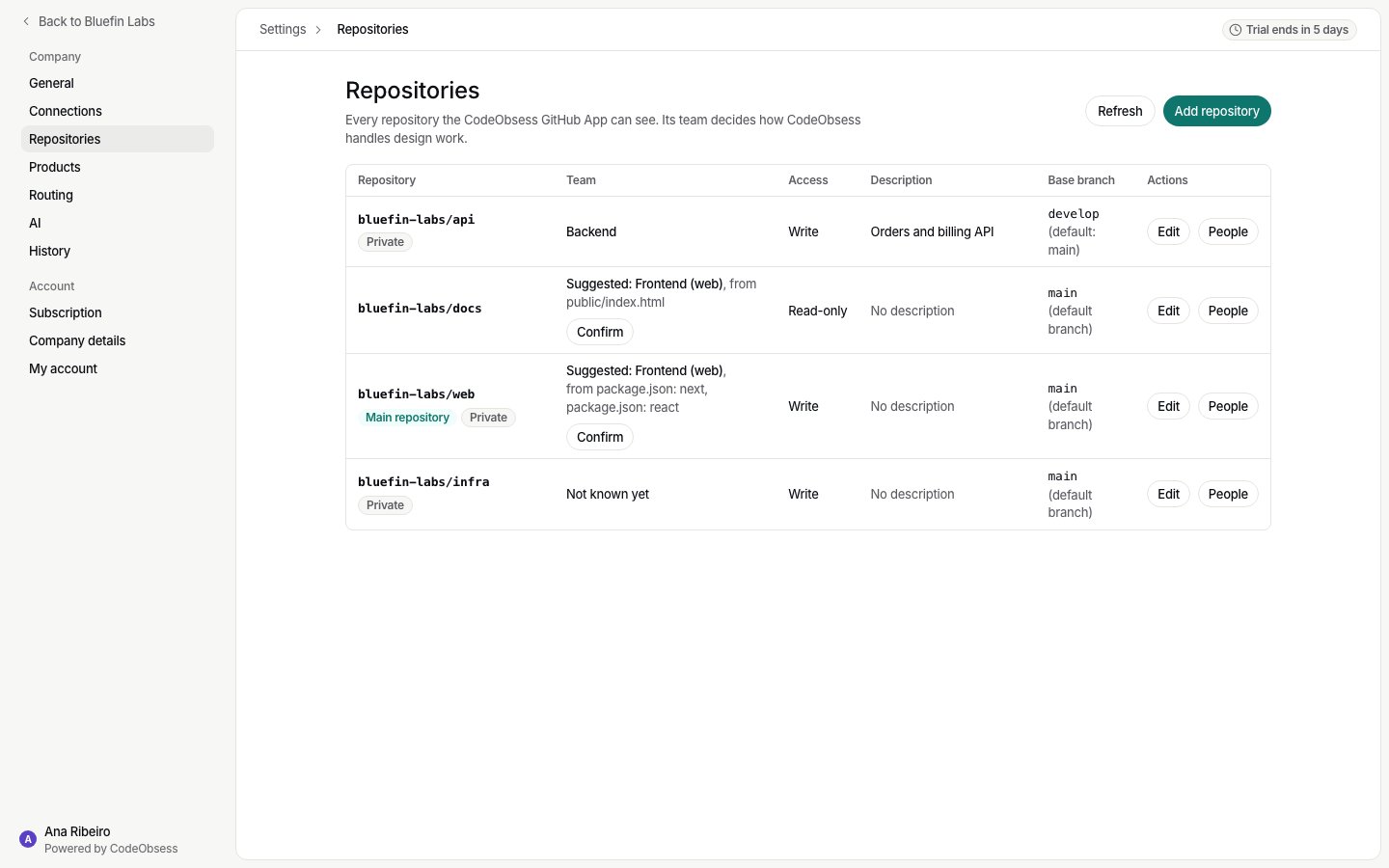
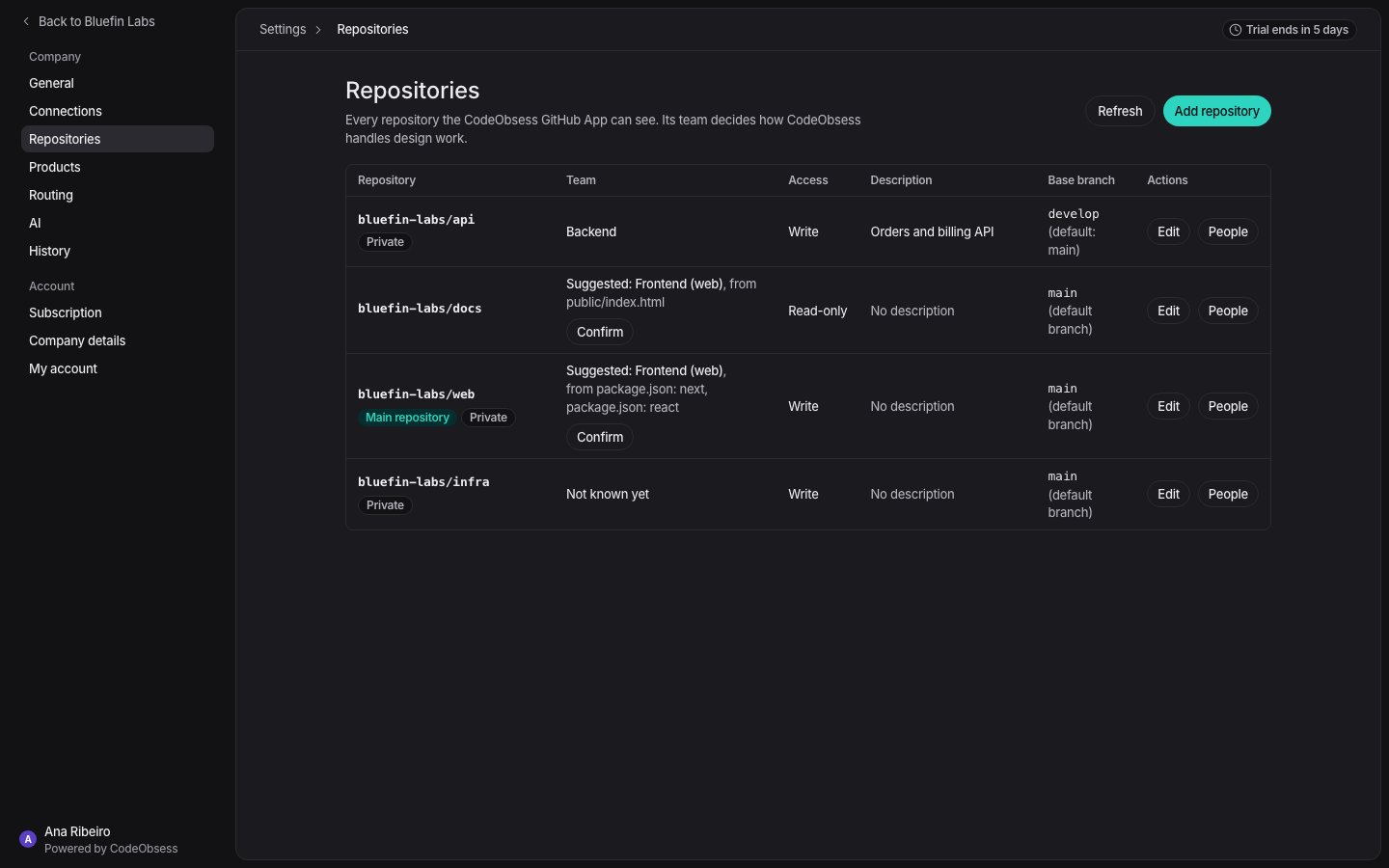
- If CodeObsess can no longer see a repository, it says so and keeps it in the list as Not visible. Give the app access to it again, or remove it from your products.
- Base branch: by default CodeObsess starts from GitHub’s default branch. Owners and admins can set another branch in the repository’s settings; it must exist on GitHub.
What access it needs
On the repositories you choose, the app asks GitHub for:- Contents: read and write, to copy the code and push CodeObsess’s branch.
- Pull requests: read and write, to open and update its pull requests and read review comments.
- Issues: read and write, for GitHub Issues tickets.
- Metadata: read-only.